Picture guide
How to stop Google ads in games and kids' apps
Nine clicks circled on real Google Ads screens, plus ticking the app categories. These two settings keep your Display, YouTube and Search partner ads away from kids' content and mobile games. Your WarmClicks report shows what those places cost you and that none of them brought a customer.
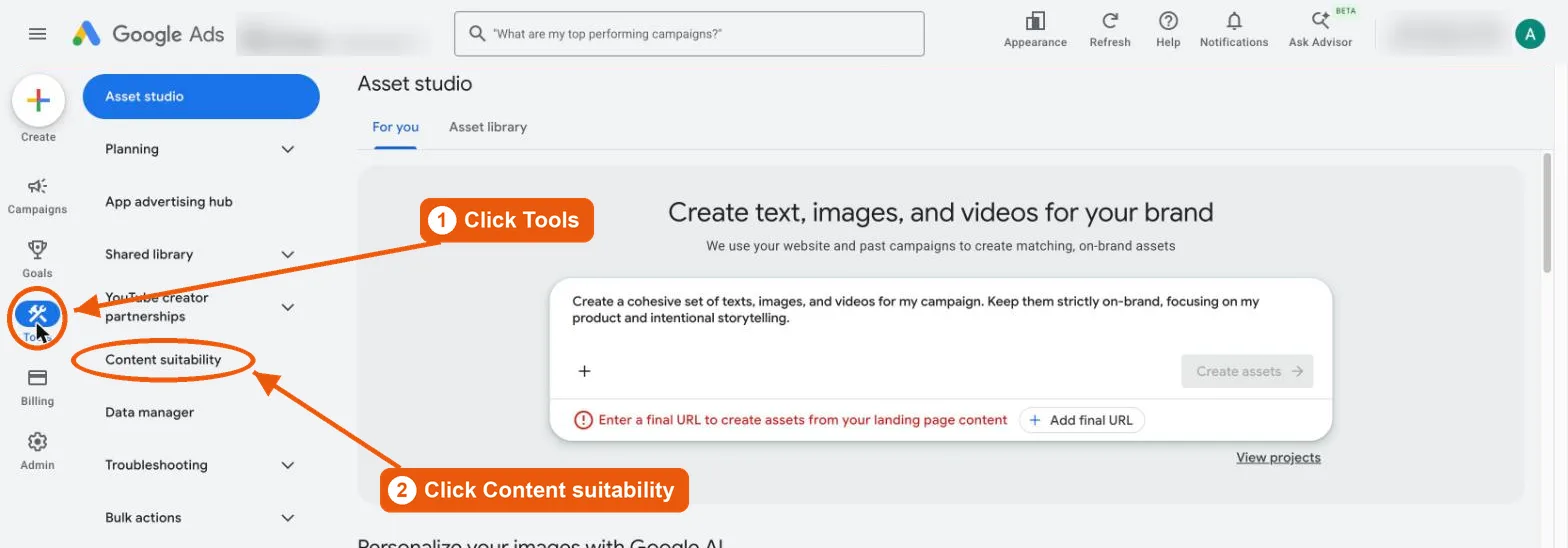
1–2Open ads.google.com. Click Tools in the bar on the left (1), then Content suitability (2).
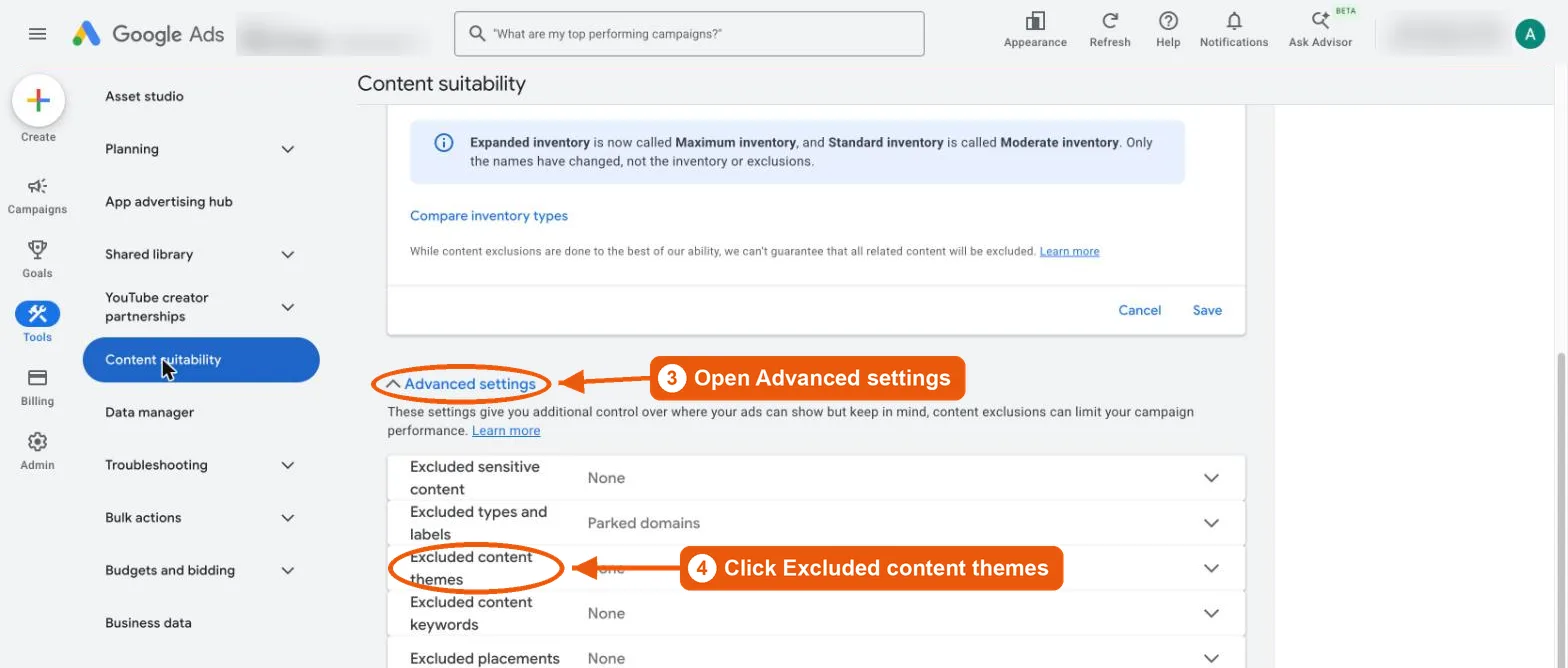
3–4Open Advanced settings if it's closed (3), then click Excluded content themes (4).
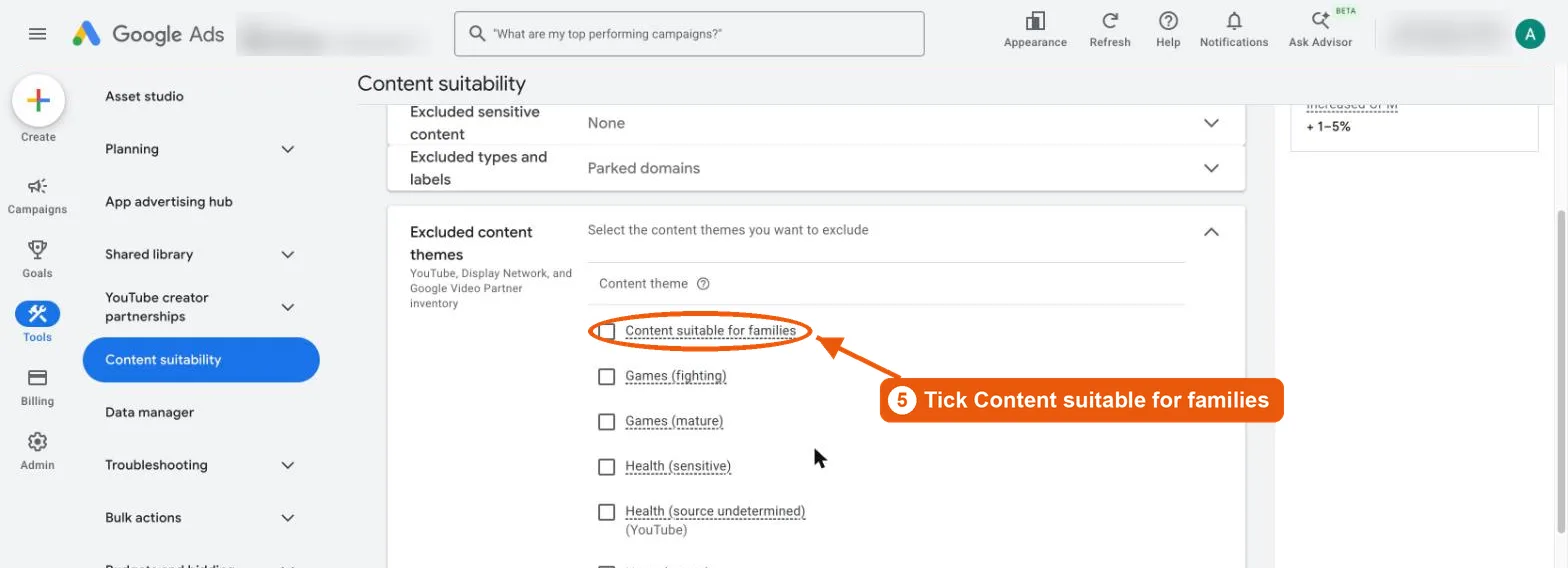
5Tick Content suitable for families.
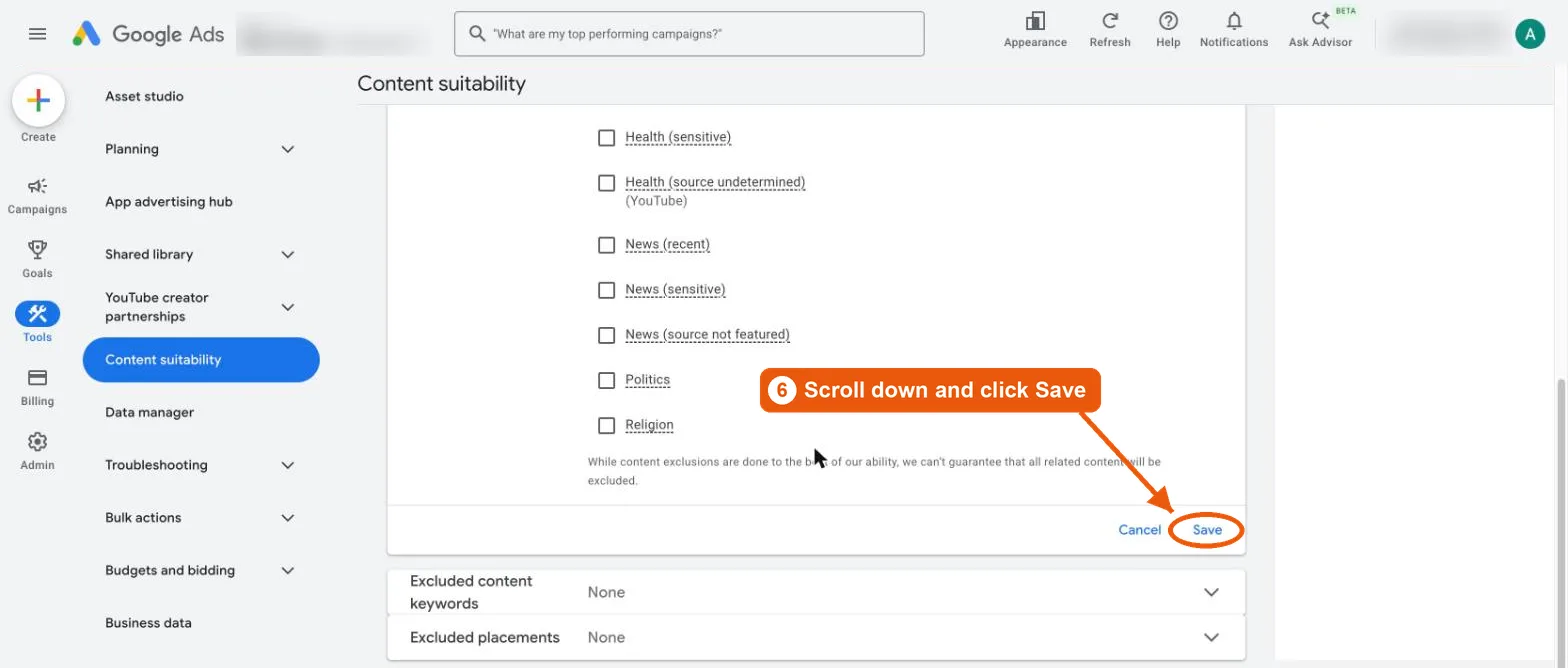
6Scroll down and click Save.
7Click Excluded placements.
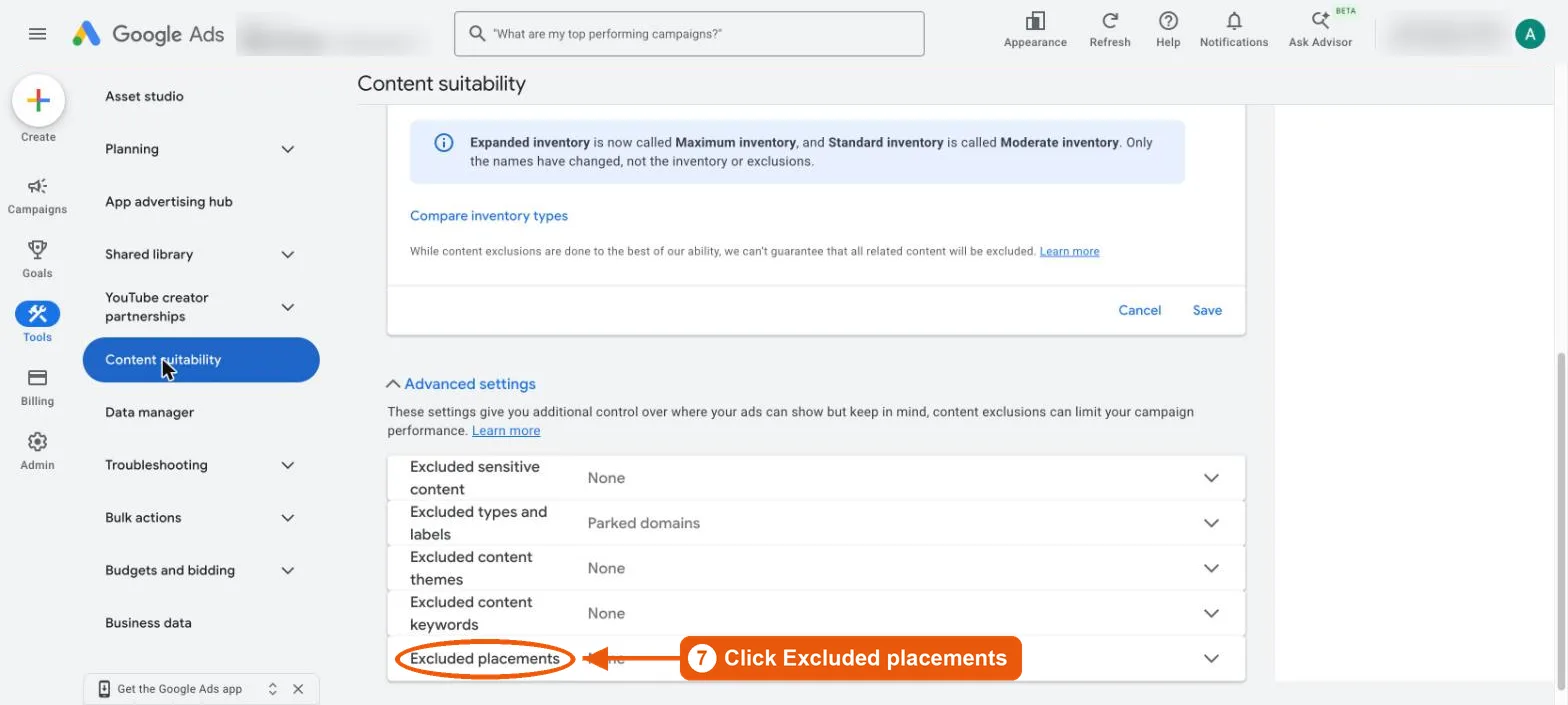
8–9Click App categories (8). Then, without a picture here: open Google Play and Apple App Store in that list and tick the categories for games, kids and family. Click Save (9).
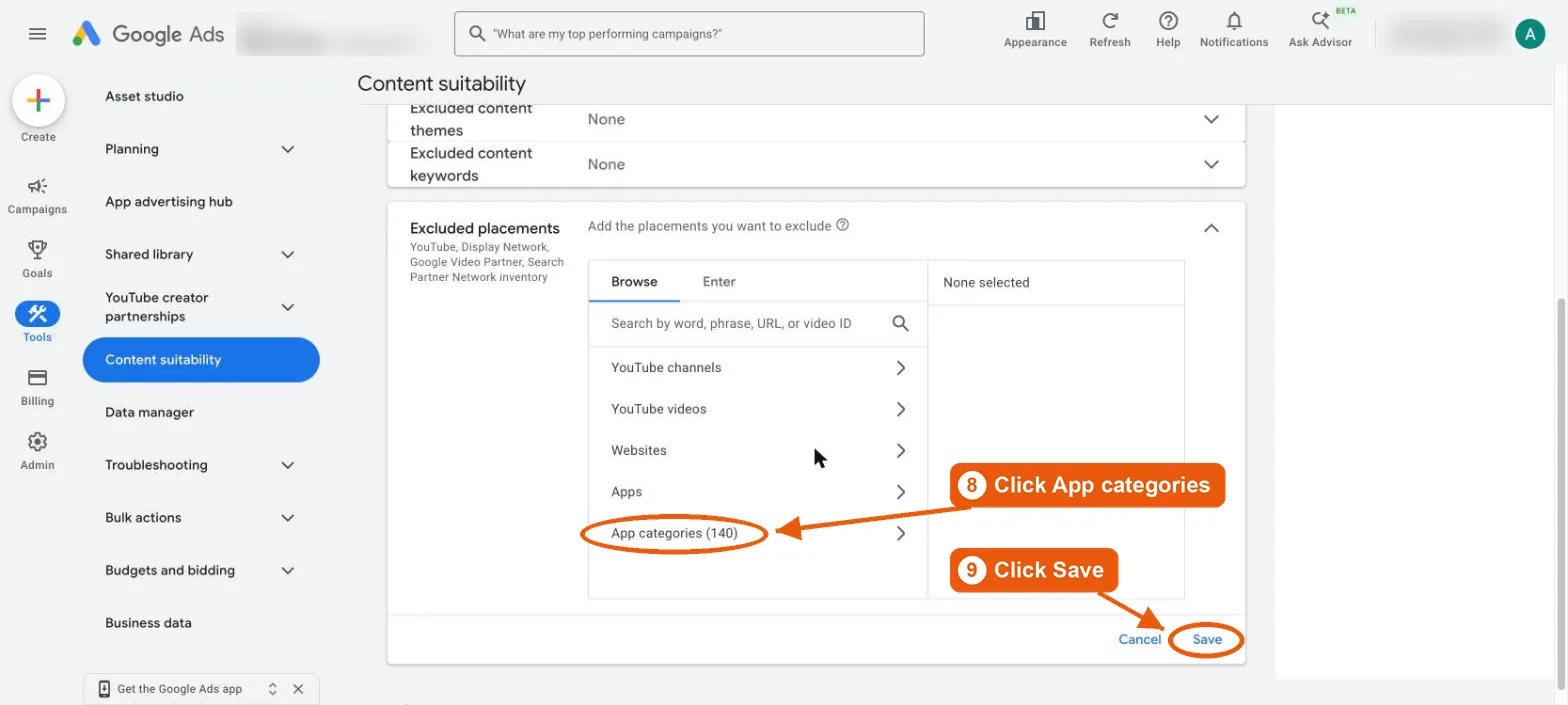
These settings count for the whole account at once. Ads on Google Search itself are not affected.
Google says on this screen that it can't guarantee every such place is excluded. Your next WarmClicks check shows what still gets through.
Sell an app or toys for children? Then skip this guide: those places can be your customers.
Best on a computer: the screens above are ads.google.com in a desktop browser. On a phone, tap a picture to open it full size.
Screens from Google Ads, November 22, 2026. Google sometimes moves buttons; if one looks different, write to connect@warmclicks.com.